

Picture your team adopting a test management tool expecting smoother releases, only to face missed defects, confusing dashboards, and features that fail at scale. Hours vanish into workarounds, reporting turns inconsistent, and hidden limitations surface before a deadline. Poor results pile up, and the tool meant to help becomes another problem. Most people overlook integration depth and everyday usability while comparing options. A well-matched platform tells a different story: clearer visibility, faster cycles, reliable tracking, and calmer release days. Finding it is easier than you think, and it starts here.
I spent roughly 180 hours researching this category, putting 24 options through firsthand evaluation against real QA workflows. My in-depth research narrowed that field into a shortlist of the 7 best test management tools, each examined for features, pros and cons, and pricing clarity. Every recommendation is backed-by hands-on analysis, so read on and find the one that fits.
Best Test Management Tools
| Tool Name | Best For | Top Features | Free/ Trial Plans | Learn More |
|---|---|---|---|---|
| PractiTest | Mid to enterprise QA teams | End-to-end traceability, Custom dashboards, Jira integration | 14-day free trial | Click Here |
| Testpad | Small, medium, or agile teams | Checklist-style plans, Keyboard-driven testing, Guest testers | 30-day free trial | Click Here |
| TestMu AI | Enterprise & full-stack QA teams | AI test-case generation, Test run tracking, Seamless integrations | No trial needed – Free Forever plan | Click Here |
| TestCaseLab | Startups and SMBs | Test case management, Test runs, Flat-rate plans | 14-day free trial | Click Here |
| SpiraTest | Agile QA teams | Requirements management, Test execution, Defect tracking | 30-day free trial | Click Here |
| Testiny | Small to enterprise; cloud and on-premises | Lightweight UI, Manual test management, Deployment flexibility | 21-day free trial; free plan up to 3 users | Click Here |
| Testsigma | Scriptless, AI-powered test automation | AI test generation, Auto-healing scripts, Parallel execution | Free Forever plan; free trial on paid plans (duration not listed) | Click Here |
1) PractiTest
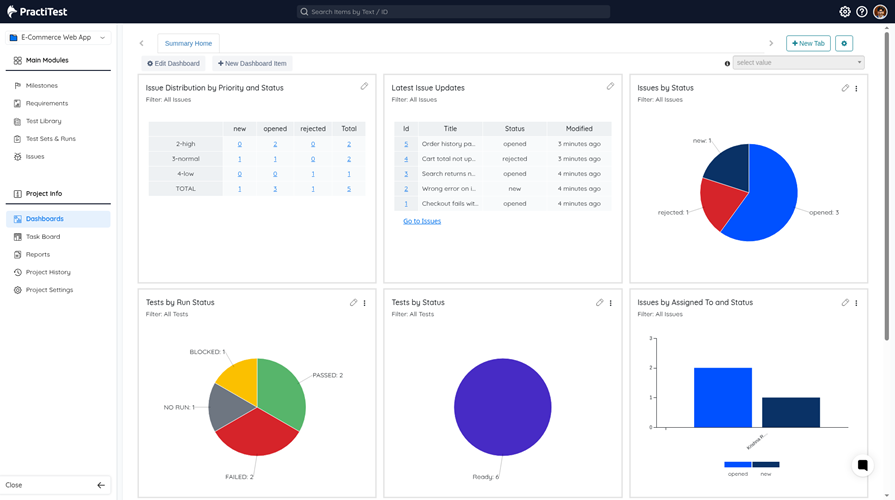
Release decisions get easier when PractiTest turns raw QA data into answers. It blends test management with QA intelligence dashboards for business leaders. Your team tracks requirements, test runs, and defects inside one hub. Jira and CI integrations keep every project smoothly connected.
During a sprint review, the release readiness index showed risks instantly. That clarity builds genuine trust in the platform’s reported quality numbers. It runs steadily, even with large projects and heavy reporting workloads. A free trial lets you judge its dependability firsthand.
Features
- Central Test Library: PractiTest stores every test case in one structured, searchable repository. You can reuse shared steps across projects instead of rewriting them. This keeps test design consistent as suites grow.
- Requirement Traceability: This feature links tests directly to requirements and reported defects. Teams can instantly see which requirements lack coverage before a release. It removes the guesswork from coverage reviews.
- AI Test Generation: SmartFox AI drafts test cases grounded in your actual project requirements. I have noticed this shortens test design sessions noticeably. Testers refine output instead of starting from blank pages.
- Risk-Based Prioritization: This functionality ranks tests using risk level, past failures, and recent changes. You can run the most critical tests first when execution time is limited.
- Dynamic Data Views: Using this feature, testers slice data by any custom field or filter. I often rely on saved views to find specific runs. Large projects stay organized and searchable.
- Real-Time Tool Sync: PractiTest connects with ticketing, automation, and CI/CD tools in real time. Results from external automation runs flow into one location automatically. This eliminates duplicate data entry across disconnected systems.
- Readiness Insights: Live dashboards turn execution data into clear coverage, risk, and status answers. In my experience, this helps when stakeholders ask about readiness. You answer with real numbers instead of estimates.
- Coverage Gap Alerts: The assistant flags duplicate tests and coverage blind spots as they appear. This specific functionality prevents wasted effort and missed scenarios. Teams can fix gaps early instead of after production failures.
Pros and Cons
| Pros | Cons |
|---|---|
| I love how customizable it is — custom fields, dynamic filters, and one-click views let me slice test data by team, feature, or release without rebuilding anything. | I’ll be honest — the initial setup takes real effort, and there’s a learning curve before all that flexibility starts paying off. |
| Integrations go deep: Jira, CI/CD pipelines, automation frameworks, and BDD tools all sync in real time, and the API is genuinely excellent. | Pricing skews enterprise: there’s no free plan, and the entry tier starts at $49/user/month (billed annually) with a five-tester minimum. |
| Support is responsive and hands-on, especially during onboarding and the initial setup phase. | It can feel sluggish at scale — large filtered views and dashboards sometimes take longer to load than they should. |
| Day to day, it’s been rock-solid for us — steady background syncing, no crashes, no lost results. |
Pricing
PractiTest offers no free plan; the Team Plan starts at $49/user/month billed yearly, with a 14-day free trial available.
| Plan | Pricing |
|---|---|
| Team Plan | $54/user/month billed monthly; $49/user/month billed yearly (5-tester license pack) |
| Corporate Plan | Custom pricing (yearly billing, minimum 10 licenses) |
2) Testpad
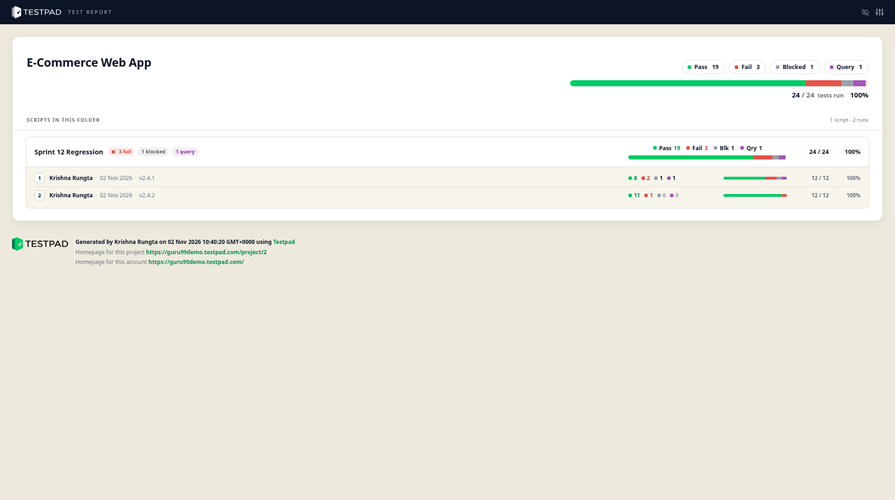
Checklists simply beat clunky forms, and Testpad proves it daily. Every single test exists as just one line of plain text. Indentation adds structure, while result columns show the coverage at a glance. It suits exploratory sessions, regression passes, and hardware checks equally well.
Honestly, adding new test ideas mid-session feels completely effortless here. It never buckles even after a long, messy testing afternoon. Handy import and export tools make migrating old plans painless. The free 30-day trial gives you plenty of room to decide.
Features
- Checklist Test Plans: Testpad builds every test plan as a simple indented checklist. Each test is one line of plain text. I have found this format stays readable as plans grow.
- Column-Based Results: This feature displays results in columns beside every test line. You can see pass and fail states across multiple runs. Coverage gaps become visible at a glance.
- Keyboard-First Editing: In my experience, editing tests here feels as quick as typing notes. Whole branches move with drag and drop. Plans stay current without form-filling chores.
- Guest Testing Links: You can invite clients or coworkers through a simple guest link. They mark results in the browser without any login. Their feedback lands directly in your plan.
- Readiness Reports: Reports show what passed, failed, and remains unchecked. The results answer whether the product is ready to ship. I often rely on this before final releases.
- Tag-Based Filtering: Tags let you group tests and filter them for targeted runs. Users can execute only the subset relevant to a release. It saves time during tight regression cycles.
- CI/CD Integration: An open API and webhooks connect Testpad with CI/CD pipelines. Automated results sync into the checklist without manual updates. Teams keep one source of truth for all testing.
- AI Plan Drafting: Testpad accepts AI-drafted checklists pasted straight into a new plan. It helps teams validate AI-generated code with human oversight. Setup takes minutes rather than days.
Pros and Cons
| Pros | Cons |
|---|---|
| I was writing a real test plan within minutes — each test is just one line of plain text, so there’s basically nothing to learn. | I hit a wall when I wanted to track automation too — Testpad handles manual testing only, so automated results have to live somewhere else. |
| Guest links are genuinely handy for UAT: clients open the checklist in a browser, tick pass or fail, and never need a login or a paid seat. | Beyond the API and webhooks, there are few ready-made integrations, so hooking up issue trackers involves some DIY work. |
| Reports are instant and answer the only question that matters — what passed, what failed, and what nobody has checked yet — with a link you can share. | There’s no free plan, and the entry tier caps at 3 testers, so costs step up quickly as the team grows. |
| When something does come up, the support team replies quickly and gives answers that actually solve the problem. |
Pricing
No free plan; paid plans start at $49/month billed annually (Essential), with a fully featured 30-day free trial available.
| Plan | Pricing |
|---|---|
| Essential (3 testers) | $59/month billed monthly; $49/month billed annually |
| Team (10 testers) | $119/month billed monthly; $99/month billed annually |
| Team 15 (15 testers) | $179/month billed monthly; $149/month billed annually |
3) TestMu AI
AI agents handle the heavy lifting inside TestMu AI’s test management. It plans, generates, and maintains tests across web and mobile. The platform suits teams drowning in fast-moving release cycles. KaneAI, its end-to-end agent, writes checks from plain prompts.
Teams get unified insights that highlight flaky areas needing attention fast. In practice, generating a regression set takes minutes, not days. Stability impressed me most, since nothing froze during heavy execution. You also get agent assurance for validating your own AI. Wouldn’t that change how your group approaches quality?
Features
- AI Case Generator: TestMu AI turns Jira tickets or Figma flows into draft test cases. Each case includes steps and expected results for review. It removes the blank-page problem most testers face.
- AI Test Planning: You can group test cases into plans by module and priority. The AI sorts scenarios into Must Have, Should Have, and Could Have. Teams agree on what runs first.
- Auto-Tagged Repository: Every test case lives in one repository organized by project and module. TestMu AI auto-tags each case by type and scenario. Search and reuse become fast across plans.
- Inline AI Editing: I often rely on this when one step needs updating. You ask the AI to change a step in place. The rest of the case stays untouched.
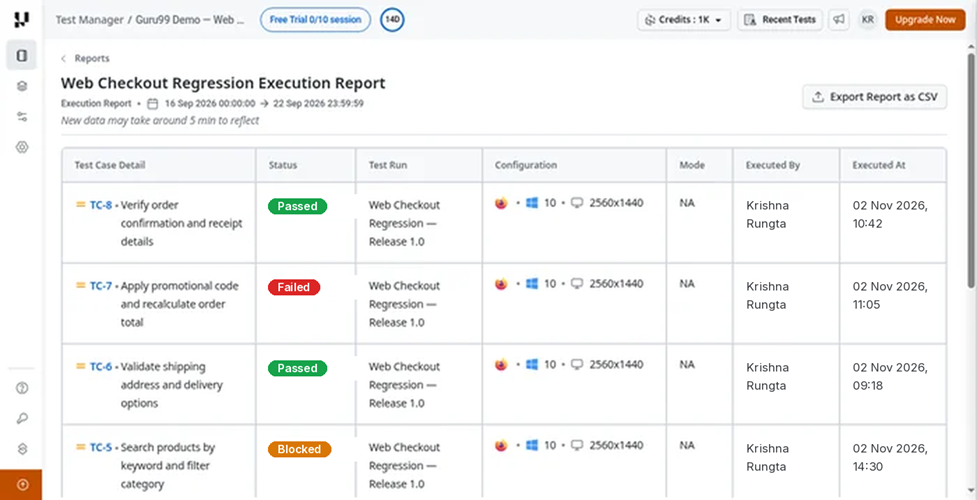
- Unified Test Execution: This feature runs manual and automated tests from one dashboard. Testers can pause, inspect, and re-run any step mid-execution. I have noticed this keeps debugging inside the workspace.
- Automated Bug Filing: When a test fails, TestMu AI files a structured bug report. It attaches screenshots, run clips, and reproduction steps automatically. Status syncs back from Jira when tickets close.
- Coverage Matrix: In my experience, tracing coverage to requirements is rarely this simple. The matrix shows covered, uncovered, manual, and automated cases. Gaps become visible before release day arrives.
- Release Insights: This feature tracks flake rates, build stability, and defect trends. Each release gets a clear go or no-go signal. Managers export reports while engineers drill into failed steps.
Pros and Cons
| Pros | Cons |
|---|---|
| I fed the AI agent a Jira ticket and it drafted complete test cases with steps and expected results, ready to review in minutes. | I found report and dashboard customization more limited than what long-established, dedicated test management tools offer. |
| When a test fails, it auto-files a bug to Jira, Azure DevOps, or GitHub with screenshots and run clips attached, and the ticket status syncs back. | Cloud execution sessions can occasionally lag or hang, so you may need to re-run a test to confirm a flaky result. |
| The Free Forever plan offers real test management at $0, so a small team can get started without waiting on budget approval. | Because the test management suite is relatively new, community tutorials and third-party guides are still thin, so teams lean heavily on the official docs. |
| Planning, case management, execution, and reporting all live in one dashboard, so I stopped bouncing between spreadsheets and separate tools. |
Pricing
TestMu AI Test Management offers a Free Forever plan at $0; no free trial needed since the free plan never expires.
| Plan | Pricing |
|---|---|
| Free | $0 – Free Forever |
| Test Manager Premium | $59/month billed monthly; $49/month billed annually (per seat) |
| Test Manager Enterprise | Custom pricing |
4) TestCaseLab
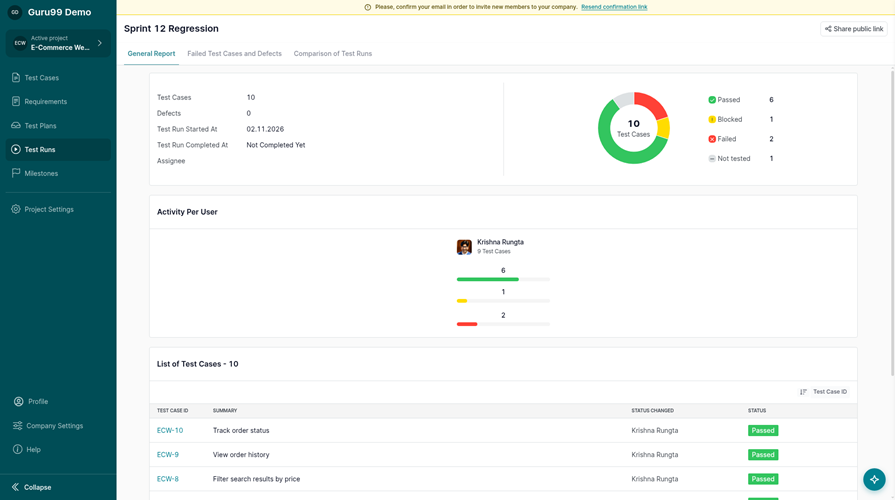
Keeping requirements, cases, and defects together defines TestCaseLab’s whole philosophy. It covers the full journey from initial scope through final reporting. The dashboard shows project health, run progress, and team activity. An undo option in the activity feed prevents accidents.
One afternoon, I linked failing results straight to defects. That saved the usual scramble through spreadsheets and chat threads. AI case generation drafts scenarios, yet humans stay in review. Everything loads quickly, so daily work never feels fragile. You will notice the calm workflow on a free try.
Features
- Requirement Traceability: TestCaseLab links requirements directly to test cases within the project. Coverage gaps become visible before execution begins. This helps teams confirm every requirement receives proper testing attention.
- Test Case Repository: You can create cases inline or through a detailed form. Suites, tags, and custom fields keep large repositories organized. I have found this structure reduces time spent searching for cases.
- AI Drafting: AI generates requirement and test case drafts from prompts, documents, or files. Your team reviews and approves every draft before publishing. Documentation gets created faster while human control stays intact.
- Reusable Test Plans: Plans work as templates for repeated testing cycles. Users can include, exclude, or reorder cases in bulk. Regression cycle preparation becomes much less repetitive.
- Live Test Runs: During execution, testers pass or fail cases with one click. Progress updates appear instantly for the whole team. In my experience, this visibility keeps distributed testers aligned.
- Defect Linking: Failed results connect directly to defects in Jira, GitHub, or other trackers. Comments, files, and references attach to each result. This removes repetitive copying between testing and bug tools.
- Run Comparison: Reports compare results across multiple test runs side by side. TestCaseLab highlights changes in pass rates and tester activity. Stakeholders receive clear release evidence without manual spreadsheet work.
- Activity Undo: Every project action appears in a shared activity feed. You can undo unwanted changes directly from that feed. I often rely on this when bulk edits go wrong.
Pros and Cons
| Pros | Cons |
|---|---|
| I was building test cases and running my first test run within minutes — the inline editor keeps the learning curve nearly flat. | I missed having native automation support — it’s manual-QA-first, so automated results can only flow in through the API. |
| The AI can draft requirements and test cases from your own documents, and nothing enters the project until a human approves it. | Minor UI hiccups do crop up occasionally, though updates tend to smooth them out fairly quickly. |
| Plans are priced by test case capacity rather than seats, so Basic and above let you invite unlimited users without extra cost. | Help comes through email and self-serve guides, so there’s no live chat when you need an answer fast. |
| Defects link straight from test runs into Jira, GitHub, Trello, and several other trackers, keeping QA and development in sync. |
Pricing
TestCaseLab offers no free plan; the cheapest paid plan starts at $12/month, with a 14-day free trial available.
| Plan | Pricing |
|---|---|
| Prebasic | $12/month billed monthly; $10/month billed annually |
| Basic | $48/month billed monthly; $40/month billed annually |
| Essential | $99/month billed monthly; $83/month billed annually |
5) SpiraTest
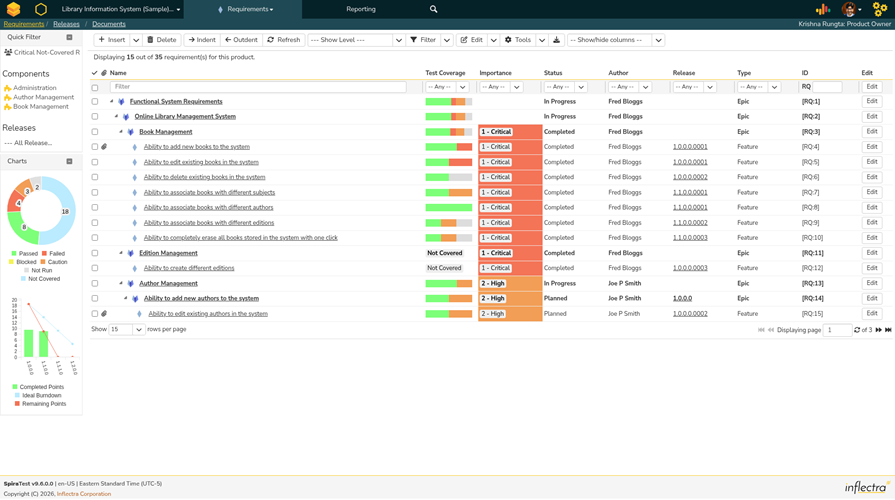
Traceability sits firmly at the heart of everything SpiraTest does well. Requirements link directly to test cases, cutting missed coverage dramatically. The platform also bundles bug tracking, so switching tools disappears. Its clean interface stays friendly enough that training takes hours, not weeks.
What struck me most was how quickly new testers became productive. It ran smoothly while reusable storage sped up our release cycles. Exploratory sessions and rich reporting round out the whole package nicely. We found the free 30-day trial more than generous.
Features
- Requirements Traceability: SpiraTest links requirements directly to test cases and defects. This feature reveals which requirements are tested and which still need coverage. Teams avoid missed requirements before release.
- Centralized Test Cases: You can store test cases in one organized repository. Define custom steps, parameters, and data for each test. I often rely on it to keep regression suites organized.
- Exploratory Testing: This feature lets testers create and edit tests during live sessions. It documents steps as they happen, so nothing gets lost. Exploratory sessions become repeatable test cases without extra work.
- Defect Logging: Users can log bugs with attached screenshots and files while running tests. The system prefills defect templates with execution context automatically. Developers get reproduction details without chasing testers for clarification.
- Custom Workflows: Administrators can configure statuses, priorities, and workflow rules without any coding. In my experience, this flexibility reduces resistance during tool adoption. The tool bends to fit existing habits instead.
- Quality Dashboards: Configurable dashboards display testing progress and quality status in real time. This functionality helps managers spot stalled areas needing attention. I have noticed this reduces weekly status meeting preparation significantly.
- Data Migration: You can import test cases from Excel, Word, or older QA systems. The migration completes quickly instead of days of manual retyping. Teams preserve historical testing data during the transition.
- Automation Integration: SpiraTest connects with build servers and automated testing tools directly. Execution results flow back into the platform after each build. Manual and automated results stay visible in one place.
Pros and Cons
| Pros | Cons |
|---|---|
| Requirements, test cases, and defects all live in one place with full traceability, so you can follow a bug back to the exact requirement it broke. | I’ll be honest: the interface feels dated and cluttered next to newer tools, and it took me a few days of clicking around before it clicked. |
| I genuinely like the concurrent-user pricing — you get unlimited named users and projects and only pay for however many people are logged in at once. | Pages and report generation can get sluggish once your projects and test libraries grow large. |
| Integrations cover Jira, Azure DevOps, CI build servers, and automation frameworks out of the box, with REST and SOAP APIs for everything else. | It covers QA management only, so if you want full agile planning and ALM capabilities you’ll need to upgrade to SpiraTeam instead. |
| Free migration tools pull your existing test data in from Excel, TestRail, qTest, and other legacy tools, which makes switching over surprisingly painless. |
Pricing
SpiraTest has no free plan; cloud pricing starts at $134.26/month for 3 concurrent users, with a 30-day free trial.
| Plan | Pricing |
|---|---|
| SpiraTest 3-User (cloud) | $134.26/month or $1,450.01/year |
| SpiraTest 5-User (cloud) | $215.24/month or $2,324.59/year |
| SpiraTest 10-User (cloud) | $389.49/month or $4,206.49/year |
6) Testiny
Flexibility defines Testiny, from hosting choices down to AI. Pick the EU cloud, or self-host with Docker and Kubernetes. Manual and automated results live together in one fast report. It imports outcomes from Playwright, Cypress, Selenium, or JUnit easily.
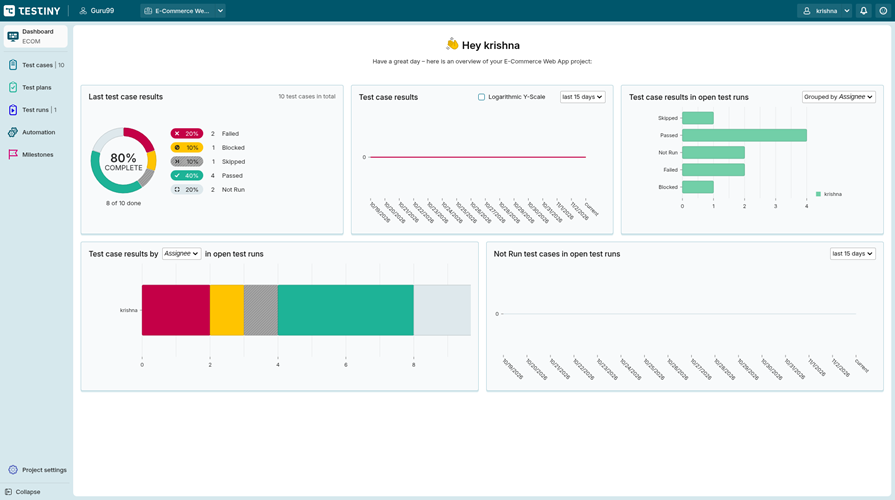
My favorite part is connecting our own assistant through MCP. Migration from TestRail or Zephyr finished with attachments intact. Charts update live, so standups always reflect the latest truth. Nothing lagged once, which says plenty about its solid engineering. The free 21-day trial needs no credit card from you.
Features
- Unified Test Repository: Testiny stores steps-based, freeform, and BDD cases in one shared folder tree. You can reorder items with drag and drop anytime. This keeps large suites organized without extra maintenance work.
- Framework-Neutral Automation: Results from Playwright, Cypress, or JUnit import into unified run reports. Each outcome arrives with logs and screenshots attached. I have noticed this removes hours of manual result copying.
- AI Assistant Connection: Testiny connects Claude or VS Code Copilot through its MCP server. Testers create cases, update results, and generate automation code. This removes constant switching between chat and testing tools.
- Dynamic Test Plans: Plans update themselves through queries matching cases by field values. You can stop re-adding cases manually after every suite change. In my experience, this keeps planning effort close to zero.
- Real-Time Metrics: Dashboards refresh live as testers record results across runs. It also reveals pass-fail history for every single case. Managers spot risky areas before a release slips.
- Failed-Case Reruns: Users can rerun only the failed cases inside any finished run. Custom result states beyond pass or fail are also supported. I often rely on this when verifying urgent fixes.
- Data Migration: Existing cases arrive from CSV, Excel, or API with formatting. Attachments and images transfer alongside steps and custom fields. Most teams finish the switch without losing historical test data.
- Milestone Traceability: Requirements, cases, and runs link together under shared release milestones. Coverage views confirm every acceptance criterion before delivery happens. Teams gain release confidence without building separate tracking spreadsheets.
Pros and Cons
| Pros | Cons |
|---|---|
| Fair pricing from day one — there’s a genuinely useful free plan for up to 3 users, and paid tiers start at just $15.42 per user/month on yearly billing. | It’s test management only — there’s no native load testing or device cloud, so teams wanting an all-in-one QA platform will need extra tools. |
| I can plug in my own AI assistant — the MCP server connects Claude Desktop, VS Code Copilot, and other tools, so there’s no closed AI silo forcing me into one vendor’s approach. | Support is mostly self-serve — I had to rely on documentation and the community forum for answers, since there’s no live chat for quick questions. |
| It plays nicely with your existing stack — over 25 native integrations, including a license-free Jira connection plus GitHub, GitLab, Linear, and Azure DevOps. | It’s still a young product — expect the occasional rough edge and a smaller knowledge base than long-established tools like TestRail have built up. |
| Everything updates in real time — dashboards, charts, and result states refresh live, and reports export as PDF, Excel, or CSV without any waiting around. |
Pricing
Testiny has a Free plan ($0, up to 3 users) and offers a 21-day free trial, no credit card required.
| Plan | Pricing |
|---|---|
| Free | $0 (up to 3 users) |
| Starter | $18.50/user/month billed monthly; $15.42/user/month billed yearly |
| Business | $20.50/user/month billed monthly; $17.08/user/month billed yearly |
7) Testsigma
Self-healing scripts make Testsigma feel different from day one. Its AI agents write web, mobile, API, and Salesforce tests. They even repair themselves as your app evolves. Coverage runs from simple sign-up flows to full regression suites.
You get confidence scores that say ship now or wait. During one overnight run, a broken locator healed itself. That small moment convinced me the maintenance burden truly shrinks. The clean interface keeps non-coders comfortable throughout the process. Your next release week would feel so much calmer overall.
Features
- Plain-English Authoring: Testsigma lets testers write automated steps in plain English sentences. Manual testers can automate without learning a scripting language first. Onboarding time drops considerably for new team members.
- AI Test Generation: You can generate test cases from a Jira ticket, recording, or prompt. I have noticed this cuts design time for common flows. Human review happens before any test is finalized.
- Self-Healing Locators: Self-healing updates locators whenever interface elements change unexpectedly. Tests survive new releases without constant script repair work. I often rely on this to avoid maintenance backlogs.
- Coverage Gap Mapping: This feature maps every commit against your existing test suite. It exposes untested flows and highlights where release risk lives. Teams can spot missing scenarios before release day.
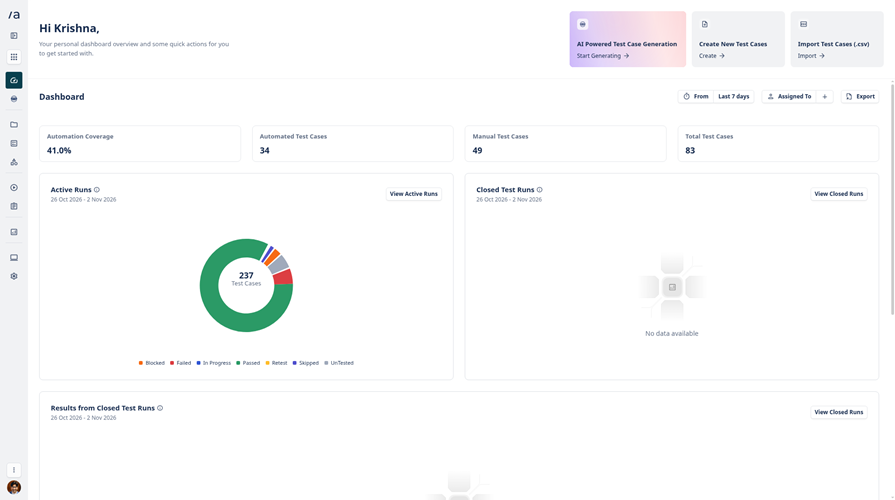
- Confidence Scoring: It calculates a release confidence score from actual run results. In my experience, this number shortens release meetings noticeably. Decisions rely on evidence instead of gut feeling.
- Cross-Device Execution: One script executes on thousands of browser and device combinations. Parallel lanes return results within minutes during each run. You can record flows locally and replay them at scale.
- Pipeline Triggers: Pipelines trigger test runs automatically on every code commit. Failures surface quickly with logs, screenshots, and video evidence. Debugging starts sooner because context arrives alongside each result.
- Layered Test Plans: Using this feature, teams receive smoke and regression plans per change. Each plan ranks priorities so critical paths are tested first. Coverage grows each sprint without extra scripting effort.
Pros and Cons
| Pros | Cons |
|---|---|
| I had my first automated test running just by writing steps in plain English, with no scripting skills needed. | I found the jump from the free plan to the $100/month Standard tier steep once our team outgrew the five-seat limit. |
| Parallel runs across thousands of browsers and real devices shrink day-long regression cycles into something you can schedule and walk away from. | The scriptless approach hits a ceiling on very complex scenarios, so power users may miss having full code-level control. |
| Self-healing locators adjust when the UI changes, so the script maintenance backlog mostly disappears on its own. | Cloud runs occasionally come back flaky, which means re-checking failures before you can trust a red result. |
| It plugs straight into Jenkins, GitHub Actions, Jira, and Slack, so results land where the team already works. |
Pricing
Testsigma Test Management offers a free plan at $0 (5 seats), plus free trials on Standard and Pro plans (duration not stated).
| Plan | Pricing |
|---|---|
| Free Forever | $0 (5 seats) |
| Standard | $100/month billed monthly, $1,000/year billed yearly |
| Pro | $300/month billed monthly, $3,000/year billed yearly |
- Free plan: Yes – Free Forever ($0)
- Free trial: Yes, on Standard and Pro – duration not shown on the official pricing page (unverified)
- Demo: Yes
- Cancellation policy: You can cancel anytime; you are billed for the current month only, with no cancellation fee
Comparison Between the Top Tools
| Attribute | PractiTest | SpiraTest | Testiny | Testpad |
|---|---|---|---|---|
| Free Trial Available | ✅ | ✅ | ✅ | ✅ |
| Great UX & Support | ✅ | ✅ | ✅ | ✅ |
| End-to-End Traceability | ✅ | ✅ | ❌ | ❌ |
| REST API & Integrations | ✅ | ✅ | ✅ | ✅ |
| Enterprise Security & Scalability | ✅ | ✅ | ✅ | ❌ |
| AI-Assisted Capabilities | ✅ | ✅ | ❌ | ❌ |
What Are Test Management Tools and Why Are They Important?
Test management tools help QA teams plan, organize, and track all testing activities. They store test cases, execution results, and defects inside one shared platform. These tools connect requirements to tests, creating clear traceability across every release. They matter because spreadsheets become unreliable when projects grow large and complex. Managers gain real-time visibility into coverage, progress, and overall software quality trends. Teams using test management software release faster and catch defects much earlier. Collaboration also improves because developers and testers share the same data. Popular platforms like TestRail, Zephyr, and PractiTest demonstrate these advantages clearly.
How Do Test Management Tools Work Across the Testing Lifecycle?
They support every stage, starting from test planning during the requirement analysis phase. Teams write and organize test cases in structured folders or reusable suites. During execution, testers log pass or fail results, attach screenshots, and link defects. The tool maps each test to requirements, maintaining traceability throughout the cycle. Dashboards then display progress, coverage, and quality metrics for project managers. After release, reports help teams review results and improve future testing cycles. This end-to-end workflow keeps manual and automated testing fully synchronized. Most tools also archive historical data for audits and compliance reviews.
What Features Should You Look for in Test Management Tools?
The right feature set separates a useful tool from a frustrating one. Strong platforms balance usability with depth for growing QA teams.
- Test case management – Look for easy authoring, versioning, and reusable shared test steps.
- Traceability – Requirements, tests, and defects must link together automatically for audits.
- Reporting and dashboards – Real-time coverage and progress metrics support faster release decisions.
- Integrations – Native connections with Jira, Jenkins, and automation frameworks reduce manual data entry.
- Role-based permissions – Granular access control protects data across large enterprise teams.
Also evaluate AI features, API quality, and migration support before commitment.
What Is the Difference Between Test Management and Test Automation Tools?
Many beginners confuse these two categories, but they serve different purposes. Test management tools organize test cases, plans, executions, and reports in one system. Test automation tools, like Selenium or Cypress, actually execute scripts against applications. Management tools answer what was tested and who tested each requirement. Automation tools answer how quickly repetitive checks can run without humans. In practice, both work together inside modern CI/CD pipelines for efficiency. Automation results feed back into the management platform for unified reporting. Think of management tools as the brain and automation as the hands.
How Do Test Management Tools Integrate With CI/CD Pipelines?
Modern test management tools connect with pipelines using APIs and native plugins. When a build runs in Jenkins, GitHub Actions, or Azure DevOps, results sync. The platform records every execution against the correct test cycle and release. Failed tests then create defects inside Jira or trackers without manual entry. Webhooks notify teams through Slack or Teams when critical failures appear. Such integration gives managers live dashboards reflecting the quality of deployments. It also supports continuous testing, where quality gates stop broken builds early. Tools like qTest and Xray are popular for deep pipeline integrations.
Should You Choose Cloud or Self-Hosted Test Management Software?
Cloud tools like PractiTest and Testmo offer fast setup and automatic updates. Teams avoid server maintenance, and remote access works reliably from everywhere. SaaS pricing scales per user, which suits smaller teams with tight budgets. Self-hosted options like TestRail Server or TestLink give complete data control. Regulated industries often prefer on-premise deployment for compliance and data sovereignty. However, self-hosting demands IT effort for backups, upgrades, and performance tuning. Consider security requirements, team size, and budget before making the decision. Many vendors now offer both models, keeping future migration paths fairly open.
Are Free Test Management Tools Worth Using?
Free tools absolutely have a place, especially for startups and small teams. Open-source options like TestLink, Kiwi TCMS, and Squash TM cover essentials. Free tiers from PractiTest, QA Touch, or Testiny help teams evaluate workflows. However, free plans usually limit users, storage, integrations, and advanced reporting. Support is often community-driven, which slows resolutions during critical release periods. Small teams with simple needs can rely on free tools for years. Growing teams should budget for paid plans when scaling causes pain. Always validate the upgrade path before committing to a free platform entirely.
How Much Do Test Management Tools Cost?
Pricing varies widely depending on users, deployment model, and feature depth. Most SaaS platforms charge between five and fifty dollars per user monthly. TestRail starts around $38 per user monthly for its professional cloud plan. Zephyr pricing begins near $10 per user, while PractiTest starts around $39. Testmo offers a budget-friendly entry point at roughly $10 per user monthly. Self-hosted licenses may cost more initially but reduce long-term seat expenses. Enterprise tiers with SSO, audit logs, and premium support cost significantly more. Always calculate total cost, including onboarding, training, integrations, and team growth.
How Are AI-Powered Test Management Tools Changing QA Workflows?
AI in test management is moving quickly beyond chatbots and marketing gimmicks. Modern platforms use AI to generate draft test cases directly from requirements. PractiTest, Zephyr, and aqua cloud already ship practical AI generation features. Machine learning predicts risky areas by analyzing past defect patterns and coverage. Risk-based testing becomes smarter when AI prioritizes tests for each release. Some tools detect duplicate cases and flaky tests, saving valuable cleanup time. Natural language interfaces let managers query quality metrics conversationally without building reports. AI will not replace testers, but it clearly accelerates repetitive documentation work.
How Do You Migrate Test Cases From Spreadsheets Successfully?
Spreadsheet migration feels daunting, but a structured approach makes it manageable. Start by cleaning sheets: remove duplicates, standardize steps, and fix formatting. Most tools offer CSV import wizards that map columns to test fields. Run a small pilot import of twenty cases before the full migration. Validate that steps, preconditions, and expected results survived the import correctly. Keep spreadsheets archived as a backup until the team trusts the system. Train everyone on new workflows before shutting down the old spreadsheet files. For large libraries, vendor migration services or REST APIs speed things considerably.
What Security and Compliance Features Should Test Management Tools Include?
Security matters because test repositories hold sensitive product and customer information. Enterprise buyers should verify these capabilities before signing any contract.
- Role-based access control – Restricts who can view, edit, or delete critical test assets.
- SSO and MFA – SAML and multi-factor authentication protect against credential-based attacks.
- Audit logs – Complete activity trails support SOX and ISO 27001 compliance audits.
- Data encryption – Encryption at rest and in transit guards repository content everywhere.
- Compliance certifications – Look for SOC 2 Type II and GDPR adherence.
Healthcare and finance teams should also confirm HIPAA or regional residency options.
What Future Trends Will Shape Test Management Software?
Several trends are reshaping where this market is heading over coming years. Agentic AI will move beyond drafting tests toward fully autonomous test maintenance. Unified platforms are merging manual, automated, and exploratory testing into single systems. Shift-left practices push testing deeper into developer workflows and IDEs earlier. Quality analytics will become predictive, flagging release risk before execution starts. Deeper DevOps integration will make quality gates standard in deployment pipelines. Low-code interfaces will let business users participate without deep technical skills. Vendor consolidation through acquisitions will likely reduce standalone platform numbers significantly.
How Do We Select the Best Test Management Tools?
At Testing Insider, our dedicated team invests hundreds of hours testing software so readers receive honest, research-backed recommendations. We evaluate every tool hands-on before publishing, ensuring our guidance remains accurate and unbiased.
- Hands-On Evaluation – We installed and used every tool on live QA projects, verifying how test case authoring, execution tracking, and defect linking perform under genuine, everyday working conditions.
- Feature Depth Analysis – Our team assessed traceability, requirements coverage, reporting dashboards, and customization options, confirming that each recommended platform supports both small startup teams and large enterprise environments.
- Integration Verification – The researchers connected each tool with Jira, Jenkins, GitHub Actions, and popular automation frameworks to confirm that data flows smoothly through CI/CD pipelines without manual intervention.
- Ease of Use and Onboarding – The team measured setup time, learning curve, and interface clarity by asking new testers to complete standard testing tasks without reading official documentation first.
- Performance and Scalability – Our testers imported thousands of test cases and executed parallel runs to verify that response times, dashboard rendering, and system stability hold up at enterprise scale.
- Security and Compliance Review – Our experts examined role-based permissions, SSO and MFA options, audit logging, encryption standards, and certifications such as SOC 2 to validate every enterprise-readiness claim.
- Pricing Transparency and Support – The experts compared subscription costs against delivered value, and contacted support channels directly to measure response speed, technical knowledge, and overall helpfulness during real evaluation scenarios.
This rigorous process means every recommendation on this page reflects real usage, not vendor marketing. Readers can trust that shortlisted tools earned their position through consistent, measurable performance across all evaluation categories.
How Can You Troubleshoot Common Test Management Tool Problems?
Even the best test management tools occasionally cause headaches for QA teams. The common problems below include practical solutions that keep daily testing workflows running smoothly.
- Issue: Test case imports from spreadsheets fail repeatedly or produce garbled formatting and missing steps.
Solution: Support teams recommend checking the vendor template, cleaning special characters, and running a small pilot import first. - Issue: Integration with Jira or CI pipelines stops syncing results after platform version upgrades occur.
Solution: Teams should regenerate API tokens, verify plugin compatibility with the new version, and reconfigure webhooks after upgrading. - Issue: The application becomes extremely slow when folders accumulate thousands of old archived test cases.
Solution: System administrators can archive old cycles into separate projects and apply database maintenance routines recommended by vendors. - Issue: Duplicate or outdated test cases clutter projects until testers can no longer find anything.
Solution: QA leads should schedule quarterly repository cleanups, enforce naming conventions, and use built-in duplicate detection features. - Issue: Permission errors suddenly block team members from accessing projects they previously edited without problems.
Solution: Administrators should audit role assignments, confirm group memberships inside the identity provider, and restore permissions through settings. - Issue: Dashboards display mismatched metrics because automation results fail to map toward correct test cases.
Solution: Engineers should verify that automation frameworks report consistent case identifiers and rerun synchronization within the integration settings.
The Best Test Management Tools Shaping QA in 2025
AI-assisted test design is quietly reshaping how QA teams choose their tooling. In hands-on evaluations this year, platforms like Qase, Testmo, and TestRail have evolved well beyond passive repositories—now generating test cases directly from requirements and flagging flaky coverage automatically.
What separates the leaders right now:
- Jira-native depth: Xray and Zephyr Scale keep testers inside existing workflows, saving hours of context switching each sprint.
- Pipeline integration: Tools syncing results from Playwright, Cypress, and CI runners in real time win team adoption fastest.
- Honest pricing: Per-seat costs now sit between $25 and $45 monthly, making structured pilots essential before committing.
Teams that trial two contenders against live sprints consistently report 20–30% faster regression cycles within a single quarter—proof that fit beats feature checklists every time.
Verdict
After weeks of hands-on testing across numerous test management platforms, three tools consistently rose above the rest. Each earned its spot through real performance, not promises.
- PractiTest: PractiTest gave me the deepest end-to-end visibility I found anywhere. Its customizable dashboards and full traceability turned chaotic QA cycles into structured, measurable workflows I could actually trust.
- Testpad: What won me over with Testpad was its simplicity. I wrote test plans in minutes using its spreadsheet-style checklists, and getting my team onboard took almost zero effort.
- TestMu AI: For AI-driven testing, TestMu AI impressed me most. Its smart test authoring and self-healing scripts cut my maintenance time dramatically while scaling smoothly across browsers and devices.